Our Short List of 3

- Best for: carrying one drive between a MacBook, a phone, and a tablet.
- Portable 2.5-inch external hard drive (HDD)
- 2TB capacity
- For Mac, Windows PC, smartphone, and tablet use
- Compatible with most USB-C and USB-A devices

- Best for: travel and field work where the drive takes knocks.
- Portable external hard drive, 4TB capacity
- Drop, shock, dust, and rain resistant
- For Mac and PC
- USB-C connection
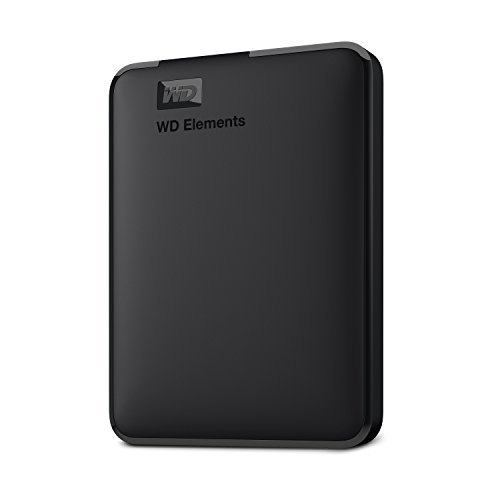
- Best for: large libraries and long-term archives.
- Portable external hard drive, 5TB capacity
- For PC and Mac
- USB 3.2 Gen 1 and USB 3.0
- Plug and play ready
All 5 Picks at a Glance
| Product | Specs | Action |
|---|---|---|
| Toshiba Canvio Flex 2TB Portable External Hard Drive |
| Check price on Amazon |
| LaCie Rugged USB-C 4TB Portable External Hard Drive |
| Check price on Amazon |
| WD Elements 5TB Portable External Hard Drive |
| Check price on Amazon |
 Seagate Portable 1TB External Hard Drive |
| Check price on Amazon |
 WD Elements 2TB Portable External Hard Drive |
| Check price on Amazon |
Key takeaways
- Compare five portable hard drives for MacBook use, from a pocketable Toshiba to a rugged LaCie and roomy WD Elements models, and match one to your files.
A MacBook earns its keep by going everywhere, and its storage fills up just as fast. A portable hard drive adds room for photo libraries, video projects, documents, and backups without opening the laptop or paying for more internal storage. The five drives below are all portable external hard disk drives, not solid state drives, and every listing states Mac compatibility in its own wording, so each one is a genuine MacBook companion rather than a Windows-only drive pressed into service.
Two picks share the WD brand as distinct Elements models in different capacities, and one pick also appears in a roundup on another site; both facts are stated openly below. Every ASIN in this article carries a warning mark because it was corroborated indirectly from listing cards rather than a live product page, so each code needs an Amazon API re-check before posting. Capacity figures, ports, and compatibility claims come only from the listings themselves.
Quick Picks
As an Amazon Associate we earn from qualifying purchases.
| Product | Best for | Key spec from title |
|---|---|---|
| Toshiba Canvio Flex 2TB | Everyday carry between Mac and phone | 2TB, USB-C and USB-A compatible |
| LaCie Rugged USB-C 4TB | Rough handling and travel | 4TB, drop and rain resistant |
| WD Elements 5TB | Large libraries and archives | 5TB, plug and play ready |
| Seagate Portable 1TB | A first backup drive | 1TB, rescue service included |
| WD Elements 2TB | Everyday backup on a budget | 2TB, plug and play ready |
How to Choose
Match Capacity to the Files You Keep
Start with what you actually store, not the largest number on the shelf. A 1TB drive holds a generous documents-and-photos collection with room for a system backup, while 2TB suits a growing photo library plus video clips. Choose 4TB or 5TB when you archive years of footage, keep multiple backups, or store large project files that you rarely delete. Buying far more room than you need only adds bulk and cost, while buying too little forces constant pruning. Pick the smallest capacity that covers your current files plus a year of growth, and keep one drive dedicated to backups rather than mixing archives and daily files.
Check the Port and Cable Before You Buy
A drive is only portable if it connects to the ports you actually have. Some MacBook models offer only USB-C ports, so a drive that ships with a USB-A cable may need an adapter or a different cable to connect at all. Listings in this guide state their connection plainly: USB-C compatibility, USB 3.0, or USB 3.2 Gen 1. Read the stated interface before ordering, and check whether the cable in the box matches your laptop. A short cable keeps a bag tidy but tethers the drive close to the laptop, while a longer cable gives you room to set the drive on a desk.
Weigh Portability Against Toughness
Every portable hard drive trades size, weight, and ruggedness against capacity and simplicity. A slim pocketable drive disappears into a laptop sleeve and suits commuters, while a rugged model with drop, shock, dust, and rain resistance suits field work, travel, and bags that get tossed around. Rugged housings add a little bulk, which is a fair trade when the drive will ride in a backpack or a work bag. If the drive will live on a desk at home, toughness matters less than quiet operation and a stable cable connection. Match the housing to the life the drive will actually lead.
Confirm Mac Compatibility and Setup
Mac compatibility must be stated by the listing, not assumed from a USB port. All five drives here state Mac compatibility in their own listing wording, which means the maker positions them for Mac use rather than leaving buyers to guess. Even so, a drive may arrive set up for Windows, in which case macOS tools can prepare it for Mac use before the first backup. Keep the drive’s stated software and format claims in mind, and avoid reformatting a drive that already holds files you need. Check the listing for the exact compatibility sentence, and keep a copy of anything important before changing how a drive is set up.
The 5 Best Options
Toshiba Canvio Flex 2TB Portable External Hard Drive
- Best for: carrying one drive between a MacBook, a phone, and a tablet.
- Portable 2.5-inch external hard drive (HDD)
- 2TB capacity
- For Mac, Windows PC, smartphone, and tablet use
- Compatible with most USB-C and USB-A devices
carrying one drive between a MacBook, a phone, and a tablet.
the listing states broad device compatibility, so confirm your exact cable and port match before relying on it for a single-device setup.
The Toshiba Canvio Flex 2TB is the most flexible everyday carry in this group, because its listing states compatibility with most USB-C and USB-A devices alongside Mac, Windows PC, smartphone, and tablet use. That broad device wording suits a MacBook owner who also moves files to a phone or tablet, and the 2.5-inch portable form slips into a sleeve pocket without demanding its own case. The warm silver finish and 2TB capacity cover a photo library, documents, and a backup with room to spare. It is the pick for buyers who want one drive that works across everything they own.
Watch out for: the listing states broad device compatibility, so confirm your exact cable and port match before relying on it for a single-device setup.
LaCie Rugged USB-C 4TB Portable External Hard Drive
- Best for: travel and field work where the drive takes knocks.
- Portable external hard drive, 4TB capacity
- Drop, shock, dust, and rain resistant
- For Mac and PC
- USB-C connection
travel and field work where the drive takes knocks.
rugged housing adds bulk over a slim pocket drive, so it suits a backpack better than a tight laptop sleeve.
The LaCie Rugged USB-C 4TB is built for bags, job sites, and travel, with a listing that states drop, shock, dust, and rain resistance alongside its portable external hard drive form. Its 4TB capacity holds large photo and video archives, and the stated Mac and PC compatibility keeps it useful when files move between systems. The USB-C connection matches modern MacBook ports without an adapter hunt. It is the largest capacity rugged option here, so it suits creators who carry their archive with them and cannot afford a drive that fails after a knock in transit.
Watch out for: rugged housing adds bulk over a slim pocket drive, so it suits a backpack better than a tight laptop sleeve.
WD Elements 5TB Portable External Hard Drive
- Best for: large libraries and long-term archives.
- Portable external hard drive, 5TB capacity
- For PC and Mac
- USB 3.2 Gen 1 and USB 3.0
- Plug and play ready
large libraries and long-term archives.
the listing states plug and play readiness, so check the stated format and compatibility wording against your own MacBook setup before the first backup.
The WD Elements 5TB is the archive horse of this group, offering the most room for photo libraries, video projects, and multiple backups in a single portable drive. Its listing states portable external hard drive form, compatibility for PC and Mac, and plug and play readiness, so setup stays simple for a buyer who wants storage without extra software steps. The USB 3.2 Gen 1 and USB 3.0 wording covers the common ports found on hubs and older machines. Choose this one when the library keeps growing and pruning files has stopped being a realistic plan.
Watch out for: the listing states plug and play readiness, so check the stated format and compatibility wording against your own MacBook setup before the first backup.
Seagate Portable 1TB External Hard Drive
- Best for: a first backup drive for documents and photos.
- Portable 1TB external hard drive (HDD)
- USB 3.0
- For PC, Mac, PlayStation, and Xbox
- One-year rescue service
a first backup drive for documents and photos.
1TB fills quickly with video, so video-heavy buyers should consider one of the larger capacities in this guide.
The Seagate Portable 1TB is the sensible first backup drive in this group, with a listing that states portable external hard drive form, USB 3.0, and compatibility for PC, Mac, PlayStation, and Xbox. The 1TB capacity covers documents, photos, and a system backup for a buyer who is starting from zero, and the stated one-year rescue service adds a safety net that the other listings here do not mention. Its black finish and compact form keep it discreet on a desk or in a drawer. It is the pick for a first-time buyer who wants a straightforward backup drive without paying for room they will not use.
Watch out for: 1TB fills quickly with video, so video-heavy buyers should consider one of the larger capacities in this guide.
WD Elements 2TB Portable External Hard Drive
- Best for: everyday backup and a growing photo library.
- Portable external hard drive, 2TB capacity
- For PC and Mac
- USB 3.2 Gen 1 and USB 3.0
- Plug and play ready
everyday backup and a growing photo library.
as with the larger Elements model, confirm the stated format and compatibility wording against your own MacBook setup before the first backup.
The WD Elements 2TB shares the Elements line with the 5TB pick above as a distinct model in a smaller capacity, and its listing states the same portable external hard drive form, compatibility for PC and Mac, and plug and play readiness. The 2TB capacity hits the middle ground for a MacBook owner with a growing photo library and a backup routine, without the bulk of an archive-grade drive. This pick also appears in a roundup on another site, which is stated openly here rather than hidden. It is the everyday choice when 1TB feels tight and 5TB feels like overkill.
Watch out for: as with the larger Elements model, confirm the stated format and compatibility wording against your own MacBook setup before the first backup.
Which One Fits Your Situation
You Carry One Drive Between Home and Class
The Toshiba Canvio Flex fits this life best, because its listing states compatibility with most USB-C and USB-A devices plus Mac, Windows PC, smartphone, and tablet use. One drive can move notes, photos, and project files between a MacBook and a phone without a second device. Keep the cable with the drive so a borrowed classroom port never strands you, and keep a backup copy of anything you cannot afford to lose.
You Archive Years of Photos and Video
The WD Elements 5TB is the archive pick, with room for years of libraries that keep growing. Its plug and play wording keeps setup simple, and the large capacity means fewer decisions about what to delete. Store the archive drive separately from the laptop when possible, and keep a second copy of irreplaceable footage, since one drive is never a complete backup plan.
You Want the Toughest Drive in the Bag
The LaCie Rugged 4TB is the pick for rough handling, with stated drop, shock, dust, and rain resistance and a USB-C connection for modern MacBook ports. It suits travel, field work, and bags that get tossed into vehicles. The rugged housing adds bulk, so pair it with a bag that has a padded pocket, and keep the cable secured so it does not snag during transit.
You Share One Drive Between Mac and Windows
The Seagate Portable 1TB and both WD Elements models state compatibility for PC and Mac, so any of them can serve a household with two systems. The Seagate adds console compatibility and a stated rescue service, which suits a shared family drive. Agree on one folder layout before sharing, and never unplug the drive while files are copying, since an interrupted transfer can corrupt data on either system.
Common Mistakes
- Buying a desktop drive that needs wall power when you wanted a portable drive for a bag.
- Choosing a portable SSD when the goal was a portable hard disk drive, since the two classes differ in price, capacity, and construction.
- Assuming Mac compatibility from a USB port instead of reading the listing’s own compatibility wording.
- Picking a capacity that covers today only, with no room for a year of growth.
- Unplugging a drive while files are copying, which risks corrupting the transfer.
Frequently Asked Questions
Do these drives work with MacBook models that only have USB-C ports?
The Toshiba listing states compatibility with most USB-C and USB-A devices, and the LaCie listing states a USB-C connection, so both match USB-C-only MacBook models directly. The WD Elements and Seagate listings state USB 3.0 or USB 3.2 Gen 1 wording, so check the cable and port match for your exact MacBook before ordering, and allow for an adapter if the stated connection differs from your ports.
Can I use one portable hard drive for backups?
Yes, a portable hard drive is a common backup destination. Keep one drive dedicated to backups rather than mixing it with daily files, and keep a second copy of anything irreplaceable, since a single drive is one point of failure. Check the listing’s stated software and format wording, and prepare the drive for your MacBook before the first backup run.
Is a portable hard drive or a portable SSD better for a MacBook?
Neither is better in every case, and this guide covers hard disk drives only. Portable hard drives generally offer more capacity per drive in this class, while portable solid state drives are a different class with faster transfers and no spinning parts. Choose a hard disk drive when capacity and value matter most, and consider a solid state drive separately when speed and shock resistance matter more than capacity.
How much storage should I buy for a MacBook backup?
Buy enough room for your current files plus a year of growth, with space left over for the backup itself. A 1TB drive suits documents and photos, 2TB suits a growing photo library, and 4TB or 5TB suits video archives and multiple backups. Check your MacBook’s used storage first, then pick the smallest capacity here that covers that figure twice over, so the backup never runs out of room.